


Working with SAP S/4HANA is based on the Fiori Launchpad. But even if an app like “Manage Output Items” (F2279) is announced as the default, it doesn’t always immediately appear on the user interface. Availability depends on a chain of technical and administrative steps. This three-step checklist guides you and your support team through the entire review process.
1. Clarify system requirements
Before starting the search, the basic existence of the app in the system must be secured. This is especially important for new S/4HANA capabilities.
Table of Contents

- Application Context: Apps of the new output management (BRFplus-based), such as the F2279 app, are tied to the S/4HANA architecture.
- Examination: Make sure that your SAP system has at least version **SAP S/4HANA 1709** (or newer). Older ECC or earlier S/4HANA releases may not support this specific app.
2. Technical Activation Test and Reference (SAP Basis Task)
If the system requirement is met, the technical bridge between the backend system and the Fiori interface (the gateway) must be correctly configured. These steps are the responsibility of SAP Basis Administration. **The central source of information for this is the SAP Fiori Apps Reference Library.**
The base should check the following points in the backend/gateway system:
| Reference | SAP Fiori Apps Reference Library | Here, the exact technical requirements, the necessary OData service name and the required business role for the app are determined. Access is via the URL: https://fioriappslibrary |
| OData Service | Transaction /n/IWFND/MAINT_SERVICE (in the gateway) |
Check whether the OData service determined via the Fiori Library is active and registered in the system. This is the necessary interface for traffic. |
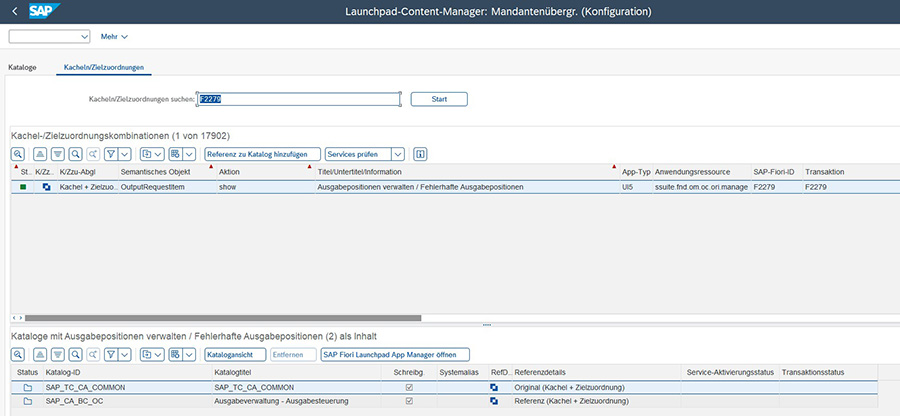
| Catalog Testing | Transactions /n/UI2/FLPCM_CONF or /n/UI2/FLPCM_CUST |
Checks if the app is included in a catalog in the **Fiori Launchpad Content Manager**. Only cataloged apps can be assigned to user roles. |
| Data Model (CDS) | See Fiori Apps Reference Library | The app is based on one or more **CDS views**. These data models must also be correctly activated in the backend system in order for the app to be able to display data at all. |
3. End User Verification and Eligibility
Even if the app is technically active (step 2), you will only see it if the permissions have been assigned correctly. This is where the testing process begins for the user.
Test step A: The quick search
Log in to the Fiori Launchpad and search for the title (“Manage Output Items”) or ID (F2279) in the **App Finder**.
- If the app is found: You have the necessary permission and you can add the app to your home page from there.
- If the app is NOT found: Proceed to check step B.
Check step B: Check the role
If the app is missing from the App Finder, contact your permissions administrator:
- Your user role (managed in transaction **PFCG**) must contain the specific **Fiori Catalog** and the **Fiori Group** to which the application belongs. The necessary catalog information comes from the **Fiori Apps Reference Library** (see step 2).
- The necessary authorization objects in the backend (for the underlying CDS views and services) must also be included in your role.
Result: Only when all three test steps – system version, technical activation by the base and correct role assignment – have been fulfilled, the Fiori app is fully visible and usable for the end user. The most common cause of invisibility is missing or incorrect assignment in the user role.

